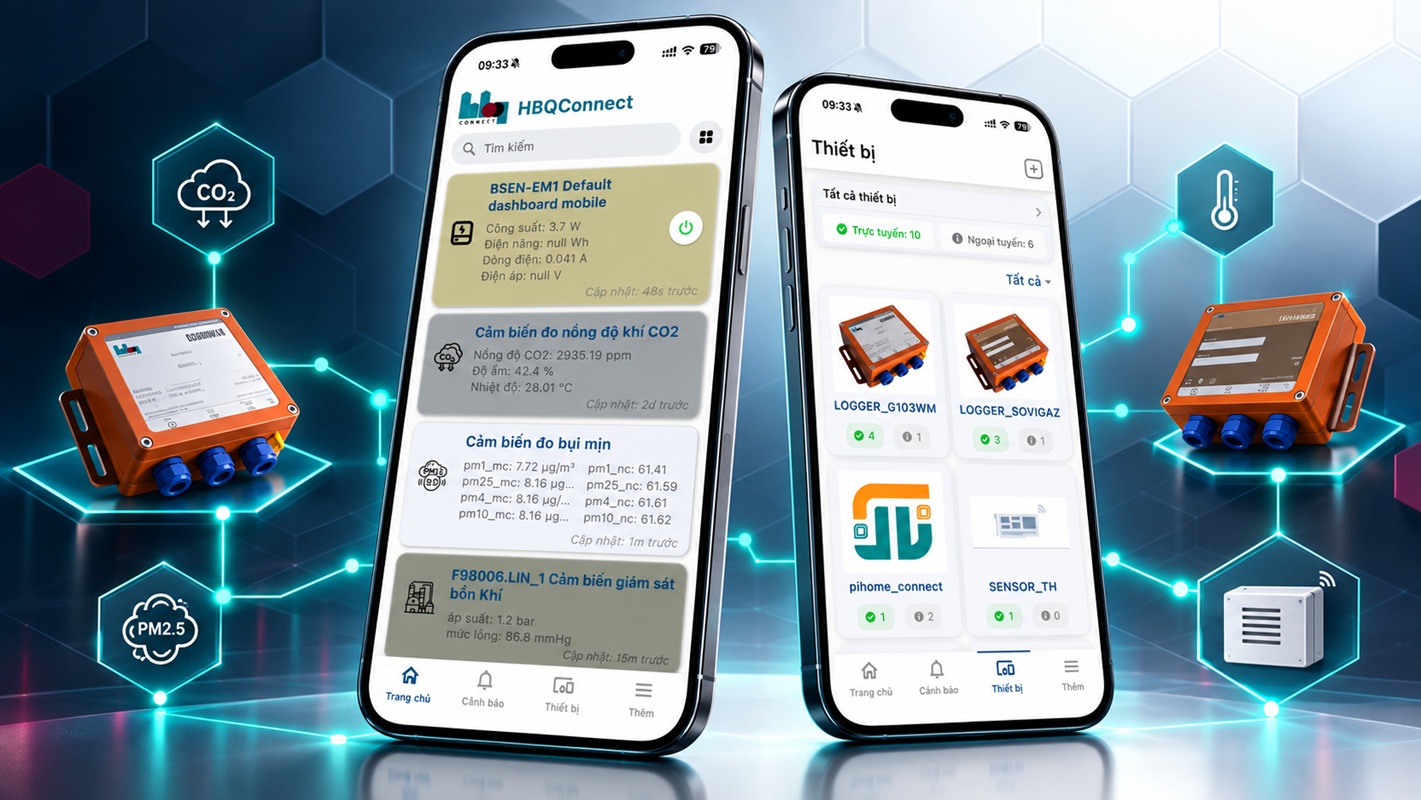
Kết nối thiết bị HBQ, theo dõi dữ liệu và nhận cảnh báo trên điện thoại
cho ứng dụng Industrial IoT và Smart Home.Connect HBQ devices, monitor data
and receive alerts on mobile for Industrial IoT and Smart Home applications.
Kết nối cục bộLocal
onboardingBluetooth + Wi-Fi · đã xác nhận AndroidAndroid verified
Phiên bản tài liệuDocument
releaseRelease candidate · 09/09/2026
01 / Năng lực sản phẩm01 / Product
capabilities
Một ứng dụng cho kết nối và vận hành thiết bịOne
application for device onboarding and operation
Các năng lực bên dưới được tổng hợp từ hướng dẫn Android và thông
tin phát hành trên kho ứng dụng. Tính khả dụng thực tế phụ thuộc thiết bị, quyền tài khoản và cấu hình trên
HBQconnect Cloud server.The capabilities below are based on the Android guide
and current store information. Actual availability depends on the device, account permissions and HBQconnect
Cloud server configuration.
Quản lý thiết bịDevice management
Xem danh sách, nhóm hiển thị và trạng thái trực tuyến hoặc ngoại tuyến.View the device list, presentation groups and online or offline status.
Core
Dashboard dữ liệuData dashboards
Theo dõi các thông số và thời điểm cập nhật bằng dashboard gán theo loại thiết
bị.Monitor parameters and update time through dashboards assigned by device
type.
Telemetry
Cảnh báo & thông báoAlerts & notifications
Nhận sự kiện theo rule, quyền thông báo và cấu hình được hỗ trợ.Receive events according to supported rules, notification permissions and
configuration.
Event
Điều khiển từ xaRemote control
Thao tác trên thiết bị có hỗ trợ và kiểm tra trạng thái phản hồi sau
lệnh.Operate supported devices and verify device state after each
command.
Conditional
Cấu hình Bluetooth / Wi-FiBluetooth / Wi-Fi
setup
Quét thiết bị ở gần và cung cấp thông tin Wi-Fi theo quy trình Android.Scan nearby devices and provide Wi-Fi settings through the Android workflow.
Android
Industrial IoT & Smart HomeIndustrial IoT & Smart
Home
Một giao diện cho dữ liệu môi trường, điện năng, áp suất và thiết bị kết
nối.One interface for environmental, electrical, pressure and
connected-device data.
Use case
Năng lựcCapability
Trạng thái tài liệuDocumentation status
Điều kiệnCondition
Tài khoản và đăng nhậpAccount and sign-in
Đã xác nhậnVerified
Cần email kích hoạt và Internet.Requires
activation email and Internet access.
Thêm thiết bị qua Bluetooth / Wi-FiBluetooth /
Wi-Fi device onboarding
AndroidAndroid
Thiết bị phải hỗ trợ; cần cấp quyền Bluetooth và vị trí.The device must support onboarding; Bluetooth and location permissions are
required.
Giám sát, cảnh báo, điều khiểnMonitoring, alerts
and control
Theo cấu hìnhConfiguration-dependent
Phụ thuộc device profile, dashboard, rule, quyền và model thiết
bị.Depends on the device profile, dashboard, rules, permissions and
device model.
iOS / iPadOS
Có trên App StoreAvailable on
App Store
Metadata nguồn ghi nhận iOS/iPadOS 15.6 trở lên; kiểm tra yêu cầu hiện tại
trên App Store.Source metadata records iOS/iPadOS 15.6 or later; verify
current requirements on the App Store.
02 / Luồng hệ thống02 / System
flow
Từ thiết bị hiện trường đến người vận hànhFrom field
device to operator
Luồng dữ liệu và điều khiểnData
and control flow
Thiết bị / GatewayDevice /
GatewayDữ liệu hiện trườngField data
→
Mạng kết nốiConnectivityWi-Fi / Internet
→
HBQconnect CloudProfile · Dashboard · Rule
→
Mobile AppGiám sát & thao tácMonitor & operate
Lệnh điều khiển đi theo chiều ngược lại và chỉ áp dụng khi thiết
bị, quyền và cấu hình cùng hỗ trợ.Control commands travel in the reverse
direction and apply only when supported by the device, permission model and configuration.
Ranh giới trách nhiệm:Responsibility boundary:Ứng dụng hiển thị dữ liệu
theo dashboard và profile từ Cloud server. Nếu giao diện hoặc cảnh báo sai, cần kiểm tra cả cấu hình server
và dữ liệu thực tế của thiết bị.The app renders data according to the Cloud
server dashboard and profile. If a view or alert is incorrect, verify both server configuration and actual
device data.
03 / Cài đặt & tài khoản03 / Install &
account
Chuẩn bị ứng dụng và kích hoạt tài khoảnInstall the app
and activate an account
Android
Tải HBQConnect trên Google Play và kiểm tra yêu cầu tương thích hiện
tại.Download HBQConnect from Google Play and verify current compatibility
requirements.
Tải HBQConnect trên App Store. Metadata nguồn ghi nhận phiên bản 6.0 và iOS/iPadOS
15.6 trở lên tại ngày 08/09/2026.Download HBQConnect from the App Store.
Source metadata recorded version 6.0 and iOS/iPadOS 15.6 or later on 8 Sep 2026.
Mở phần đăng kýOpen
registrationKhởi động HBQConnect và chọn tạo tài khoản
mới.Launch HBQConnect and select the option to create a new account.
Nhập thông tinEnter account
informationDùng địa chỉ email có thể truy cập, hoàn thành biểu mẫu
rồi nhấn đăng ký.Use an accessible email address, complete the form and
submit registration.
Kích hoạt qua emailActivate by
emailKiểm tra Hộp thư đến và Thư rác; mở liên kết xác nhận và tạo
mật khẩu.Check Inbox and Spam, open the confirmation link and create a
password.
Đăng nhập và kiểm tra cài đặtSign in and review
settingsQuay lại ứng dụng, đăng nhập, sau đó kiểm tra ngôn ngữ,
thông tin người dùng và quyền thông báo.Return to the app, sign in, then
review language, user information and notification permission.
04 / Thêm thiết bị04 / Add a
device
Cấu hình Bluetooth / Wi-Fi trên AndroidBluetooth / Wi-Fi
onboarding on Android
Phạm vi đã xác nhận:Verified scope:quy trình này dựa trên tài liệu
Android. Không áp dụng nguyên trạng cho iPhone/iPad nếu chưa kiểm tra với phiên bản ứng dụng đang sử
dụng.this workflow is based on Android documentation. Do not assume the same
steps apply to iPhone/iPad without checking the installed app version.
Chuẩn bị thiết bị và điện thoạiPrepare the
device and phoneCấp nguồn thiết bị, đặt trong phạm vi kết nối, bật
Bluetooth và Định vị trên điện thoại.Power the device, keep it within range,
and enable Bluetooth and Location on the phone.
Bắt đầu quétStart scanningVào Thiết bị, nhấn dấu + và cấp các quyền kết nối/vị trí khi được yêu
cầu.Open Devices, tap + and grant connection/location
permissions when requested.
Chọn đúng thiết bịSelect the correct
deviceĐối chiếu tên hoặc nhận dạng thiết bị trong danh sách quét
trước khi tiếp tục.Match the device name or identifier in the scan list
before continuing.
Cấu hình Wi-FiConfigure
Wi-FiNhập mật khẩu mạng Wi-Fi theo giao diện. Khả năng hỗ trợ băng
tần phụ thuộc model thiết bị.Enter the Wi-Fi password in the app. Supported
Wi-Fi bands depend on the device model.
Xác nhận kết quảVerify the
resultThiết bị phải xuất hiện tại Trang chủ. Mở thiết bị và kiểm
tra thông số cùng thời điểm cập nhật.The device should appear on Home. Open
it and verify parameters and the latest update time.
05 / Vận hành hằng ngày05 / Daily
operation
Theo dõi trạng thái, dữ liệu và sự kiệnMonitor status,
data and events
Trang chủ: mở thiết bị để xem dashboard và thời điểm cập nhật.Home: open a device to view its dashboard and update time.Thiết bị: kiểm tra danh sách và trạng thái trực tuyến/ngoại
tuyến.Devices: review the list and online/offline status.
Tác vụTask
Thực hiệnProcedure
Tiêu chí kiểm traVerification
Kiểm tra thiết bịCheck devices
Mở Thiết bị và lọc đúng nhóm/danh sách.Open
Devices and select the required group/list.
Trạng thái và tên thiết bị đúng với hiện trường.Device name and status match the field installation.
Đọc dữ liệuRead data
Mở thiết bị từ Trang chủ, xem giá trị và thời điểm cập nhật.Open a device from Home and review values and update time.
Giá trị còn mới và nằm trong phạm vi vận hành dự kiến.Values are current and within the expected operating range.
Xử lý cảnh báoHandle alerts
Mở Cảnh báo, xác định thiết bị và thời điểm sự kiện.Open Alerts and identify the device and event time.
Đối chiếu dữ liệu thực tế; chuyển cấp theo quy trình vận hành.Compare with actual data and escalate through the operating procedure.
Điều khiển từ xaRemote control
Gửi lệnh trên thiết bị có hỗ trợ.Send a command
to a supported device.
Xác minh trạng thái phản hồi sau lệnh; không dựa riêng vào thao tác trên màn
hình.Verify the resulting device state; do not rely only on the screen
interaction.
06 / Xử lý sự cố06 /
Troubleshooting
Chẩn đoán theo từng lớp kết nốiDiagnose by connection
layer
Thứ tự kiểm tra khuyến nghịRecommended check order
Nguồn thiết bịDevice
power
→
Bluetooth / Wi-Fi
→
Cloud & tài khoảnCloud &
account
Hiện tượngSymptom
Kiểm traChecks
Không nhận email kích hoạtActivation email not
received
Kiểm tra địa chỉ, Hộp thư đến và Thư rác; sau đó liên hệ hỗ trợ nếu vẫn không
nhận được.Verify the address, Inbox and Spam folder; contact support if
the message still does not arrive.
Không tìm thấy thiết bịDevice not found
Kiểm tra nguồn, phạm vi kết nối, Bluetooth, Định vị và quyền ứng dụng; quét
lại.Check power, range, Bluetooth, Location and app permissions; scan
again.
Không hoàn tất Wi-FiWi-Fi setup does not
complete
Kiểm tra mật khẩu, vùng phủ sóng, Internet và băng tần Wi-Fi được model hỗ
trợ.Check password, coverage, Internet access and the Wi-Fi band
supported by the device model.
Có thiết bị nhưng dữ liệu cũ/trốngDevice present
but data is stale/empty
Kiểm tra thời gian cập nhật; nhờ quản trị xác nhận telemetry, Key, device
profile và dashboard.Check update time; ask an administrator to verify
telemetry, keys, device profile and dashboard.
Không nhận cảnh báoAlerts not received
Kiểm tra quyền thông báo trên điện thoại và rule cảnh báo của đúng device
profile.Check phone notification permission and the alert rule assigned
to the correct device profile.
07 / Nghiệm thu07 / Acceptance
Checklist bàn giao cho người dùngUser handover
checklist
Tài khoản đã kích hoạt và đăng nhập thành công.Account
activated and sign-in successful.
Thiết bị đúng tên xuất hiện trong danh sách.The
correctly named device appears in the list.
Trạng thái trực tuyến/ngoại tuyến phản ánh đúng kết nối.Online/offline state reflects actual connectivity.
Dashboard hiển thị đúng thông số và đơn vị.Dashboard
shows the correct parameters and units.
Thời điểm cập nhật dữ liệu được kiểm tra.Data update
time has been verified.
Cảnh báo thử nghiệm đã được nhận nếu dự án có cấu hình.A test alert has been received when configured for the project.
Lệnh điều khiển được xác minh tại thiết bị nếu có hỗ trợ.Control commands have been verified at the device when supported.
Người dùng biết kênh liên hệ và không chia sẻ mật khẩu.The user knows the support channel and does not share passwords.
Khi yêu cầu hỗ trợ:When requesting
support:cung cấp model/tên thiết bị, hệ điều hành, phiên bản ứng
dụng, thời điểm gặp lỗi và ảnh thông báo. Không gửi mật khẩu hoặc mã xác thực.provide device model/name, operating system, app version, incident time and a screenshot of
the message. Never send passwords or verification codes.
Nguồn: Hướng dẫn cài đặt app HBQconnect — Android Only V1, trang 3–9;
Google Play; App Store; datasheet Rev. 1.1. Ảnh hero là minh họa trình bày từ ảnh giao diện thật; ảnh màn
hình trong phần vận hành là ảnh nguồn chính thức.Sources: HBQconnect Android
installation guide V1, pages 3–9; Google Play; App Store; datasheet Rev. 1.1. The hero is a presentation
composite based on actual UI references; screenshots in the operation section are official source
images.